Our support hours are from Monday to Friday:
7:30 PM - 12:00 PM (New York)
1:30 AM - 6:00 PM (Paris)
5:00 AM - 9:30 PM (India)
8:30 AM - 1:00 AM (Tokyo)
Check your "Spam" folder in case our responses go to
Spam. You can create a new filter (Filters and Blocked Addresses) in your
Gmail settings for our domain
gptforwork.zendesk.com
and select "Never send it to Spam".
For more information, refer to
this user-friendly tutorial.
Submit a request
Frequently Asked Questions
Billing issues
- I have a ChatGPT subscription, but I still need to buy credits
Problem: You have a ChatGPT subscription, but GPT for Excel still says that you need to buy credits.
Solution:
You do not need an OpenAI ChatGPT subscription (Go, Plus, Pro, Business, or Enterprise plan) to use GPT for Work. If you have a ChatGPT subscription, you cannot use it with GPT for Work.
- I bought a pack but I still have no credits
Problem: You have bought credits but GPT for Excel still shows zero credits.
Solution:
Check which account you are using in GPT for Excel and make sure it is the account with which you have purchased your credits. Switch to another account if needed.
- My packs have disappeared from the tracking screen
Problem: You have bought credits and used GPT for Excel but now your credit packs have disappeared from the usage tracking screen.
Solution:
Check which account you are using in GPT for Excel and make sure it is the account with which you have bought your credit packs. Switch to another account if needed.
- The costs are too high
Problem: Your consumption is higher than you expected and you wish to spend less money on GPT for Excel.
Solutions:
-
Estimate your costs before processing a large number of cells.
-
Select a cheaper model after comparing their prices.
-
Set up an API key to save on total cost.
-
- I have a subscription, but the add-in says I've reached my usage limit
Problem: You are on a subscription plan, but GPT for Excel says that you reached your usage limit.
Solution:
This happens when your seat's monthly usage credits are used up and one of the following is also true:
-
The space's shared extra-usage credits are empty or expired.
-
The space's monthly limit has been reached.
-
You have reached your user monthly limit.
If you are the space owner or an admin, buy extra-usage credits or raise the limit that was reached. Otherwise, ask your space owner or admin to do so.
You can also wait for your next renewal, when your seat's monthly usage credits reset. The Billing page in the GPT for Work dashboard shows the reset date.
-
- I have extra-usage credits that I can't use
Problem: You have extra-usage credits, but you can't use them.
Solution:
You need an active subscription to use extra-usage credits. If your subscription is canceled or a renewal payment failed, your extra-usage balance is preserved, but you cannot use it. To use it again, renew your subscription or start a new one from the Billing page in the GPT for Work dashboard. Extra-usage credits still expire 12 months after your last purchase, even while your subscription is inactive.
- My renewal payment failed
Problem: Your subscription renewal payment failed.
Solution:
If you are the space owner or an admin, update your payment method and pay the outstanding invoice from the GPT for Work dashboard:
-
In the sidebar, select Billing.
-
Click Payment method to open the Stripe Customer Portal, and update your payment method.
-
Back on the Billing page, click Pay now. If you skip this step, the payment is retried automatically over the next few days.
If you are not the space owner or an admin, ask them to update the payment method.
-
- I paid for a subscription, but the add-in still says my free trial ended
Problem: You upgraded to a paid subscription, but GPT for Excel still says that your free trial ended or asks you to upgrade.
Solution:
GPT for Excel may still show your previous subscription status. To update the status, click refresh in the message, or close and reopen the GPT for Excel sidebar.
If the message persists, you may be signed in to GPT for Excel with a different account than the one you used to buy the subscription. Check which account you are using in GPT for Excel, then switch to another account if needed.
Pricing and billing FAQ - Subscription
- How do I know what type of plan I'm on?
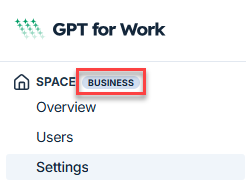
Open the GPT for Work dashboard. If the badge next to SPACE in the left sidebar shows Pay-as-you-go, your space is on the pay-as-you-go model. If it shows a plan name, your space is on the subscription model.
- Can I switch between the subscription and pay-as-you-go models?
No, not directly. Your pricing model is assigned automatically based on when your space was created: Subscription is rolling out to some new spaces, while existing spaces remain on pay-as-you-go. To ask about moving your space to a different pricing model, contact support.
- How can I buy more credits?
You can buy credits at any time from the GPT for Work dashboard. Packs feed the shared extra-usage credits and can only be bought while your subscription is active.
- How are credits consumed?
Each seat's monthly usage credits are consumed first, then the shared extra-usage credits. For more information about credit consumption, see How credits are consumed.
- Do credits expire?
Credit packs expire one year after your last purchase. Buy more credits at any time to reset the expiry to one year.
Example: You have $100 worth of credits. Your last purchase was 7 months ago, so these credits will expire in 5 months. You buy $29 worth of credits. You now have $129 worth of credits, which will expire in 12 months.
The monthly usage credits are separate: they reset at every renewal and do not roll over.
- Do I need credits if I set an API key or endpoint?
Yes, you need credits even if you use an API key or endpoint. Models available through an API key have their own pricing. Models available through a dedicated endpoint do not consume credits, but require credits to be available.
- Can I share credits with my team?
Each seat has its own monthly usage credits, and the extra-usage credits are pooled across the whole space.
- Can I share credits between Google and Microsoft accounts?
-
Credits bought for Google Sheets can be used on Google Docs, and vice versa.
-
Credits bought for Microsoft Excel can be used on Microsoft Word, and vice versa.
To transfer credits between Google and Microsoft accounts, contact support.
-
- Can I transfer my credits to another account?
To transfer your credits to another account, contact support.
- Can I set an auto top-up?
No, but you can buy larger packs to have your credits last longer.
- Can I pause usage?
No, but you can set spending limits for extra usage to keep credit consumption under control. Learn more.
- Can I set credit usage limits?
Yes. You can set a monthly spending limit for your space and individual monthly limits per user from the Limits page in the GPT for Work dashboard. Spending limits apply only to the shared extra-usage credits. Learn more.
- How do I raise the monthly limit for my space or a user?
If you or your team hit a monthly limit, a space owner or admin can raise or remove it from the Limits screen in the GPT for Work dashboard. Monthly limits apply only to the shared extra-usage credits and are available on Business and Enterprise plans. Each seat's monthly usage credits cannot be raised. Learn more.
- Why is my balance negative?
Before each run, the add-on estimates the cost and blocks the run if your balance is too low. If the final cost exceeds the estimate, your balance can go negative by a small amount. This amount is deducted from the following billing cycle.
- Can I get a refund?
We do not offer refunds. We encourage you to carefully consider how many credits you need before buying extra-usage credits.
Pricing and billing FAQ - Pay-as-you-go
- How do I know what type of plan I'm on?
Open the GPT for Work dashboard. If the badge next to SPACE in the left sidebar shows Pay-as-you-go, your space is on the pay-as-you-go model. If it shows a plan name, your space is on the subscription model.
- Can I switch between the subscription and pay-as-you-go models?
No, not directly. Your pricing model is assigned automatically based on when your space was created: Subscription is rolling out to some new spaces, while existing spaces remain on pay-as-you-go. To ask about moving your space to a different pricing model, contact support.
- How can I buy more credits?
You can buy credits at any time from the GPT for Work dashboard.
- How many credits do I need?
To estimate your credit usage, try our estimation tools.
- How are credits consumed?
- What's a token?
A token is a unit of text, such as a word, subword, punctuation mark, or symbol. Models split all input and output text into tokens for processing. Model providers use tokens as the basic unit for measuring model usage. Input tokens from your prompt and output tokens from the model's response contribute to your credit consumption. For more information, see Tokens and How credits are consumed.
- Do credits expire?
Credit packs expire one year after your last purchase. Buy more credits at any time to reset the expiry to one year.
Example: You have $100 worth of credits. Your last purchase was 7 months ago, so these credits will expire in 5 months. You buy $29 worth of credits. You now have $129 worth of credits, which will expire in 12 months.
- Do I need credits if I set an API key or endpoint?
Yes, you need credits even if you use an API key or endpoint. Models available through an API key have their own pricing. Models available through a dedicated endpoint do not consume credits, but require credits to be available.
- Can I share credits with my team?
Yes. Team members share the same credits.
- Can I share credits between Google and Microsoft accounts?
-
Credits bought for Google Sheets can be used on Google Docs, and vice versa.
-
Credits bought for Microsoft Excel can be used on Microsoft Word, and vice versa.
To transfer credits between Google and Microsoft accounts, contact support.
-
- Can I transfer my credits to another account?
To transfer your credits to another account, contact support.
- Can I set an auto top-up?
No, but you can buy larger packs to have your credits last longer.
- Can I pause usage?
No, but you can set spending limits to keep credit consumption under control. Learn more.
- Can I set credit usage limits?
Yes. You can set a monthly spending limit for your space and individual monthly limits per user from the Limits page in the GPT for Work dashboard. Learn more.
- How do I raise the monthly limit for my space or a user?
If you or your team hit a monthly limit, a space owner or admin can raise or remove it from the Limits screen in the GPT for Work dashboard. Learn more.
- Why is my balance negative?
Before each run, the add-on estimates the cost and blocks the run if your balance is too low. If the final cost exceeds the estimate, your balance can go negative by a small amount. This amount is deducted from your next credit pack purchase.
- Can I get a refund?
We do not offer refunds. We encourage you to carefully consider how many credits you need before buying credits.
- Do errors consume credits?
Yes. Input tokens are always billed. If a request times out, output tokens are billed as well. To avoid timeouts, use the Agent or the bulk tools.
Installation issues
- I can't sign in after installing
Problem: You have installed GPT for Excel and you have trouble signing in with Microsoft.
Solutions:
-
Check which versions of Excel and which browsers are supported by this add-in.
-
Try using Excel for the web instead of the desktop version.
-
Try using Excel for the web in a private/incognito window.
-
If you're using a firewall or proxy, whitelist the required domains.
-
- The add-in doesn't load
Problem: If your organization uses a firewall or proxy, it may prevent the add-in from loading.
Solution:
Ask your IT administrator to whitelist the following domains:
*.gptforwork.com*.microsoft.com*.microsoftonline.com*.live.com*.office.com- The add-in update doesn't complete
Problem: GPT for Excel shows an update prompt, but clicking Update does not complete the update. The same prompt appears every time you reopen the add-in.
Solution:
This can happen when Office uses a stale cached version of the add-in. Clear the Microsoft Office cache to force Office to re-fetch the latest version:
-
Close all Office applications.
-
Open Excel and try again.
If the issue persists after clearing the cache, restart the computer and reopen Excel.
noteClearing the Office cache may reset some of your Excel application settings.
-
- Add-in not supported
This add-in is only supported with your Microsoft 365 subscription license and is not supported with your Office license.The following table lists the minimum versions of Microsoft Excel compatible with the GPT for Excel add-in on different Microsoft Office platforms.

Windows macOS Web Microsoft 365 subscription:
Version 2002 (Build 12527.20092)
Retail perpetual:
Version 2002 (Build 12527.20092)
Volume-licensed perpetual:
Excel 2021: Version 2108 (Build 12527.20092)
Version 16.35 (Build 20030802)
Supported on:
Google Chrome (latest version)
Microsoft Edge (latest version)
- I signed in with the wrong account
Problem: You signed in with the wrong account while installing GPT for Excel and need to switch to the correct one.
Solution:
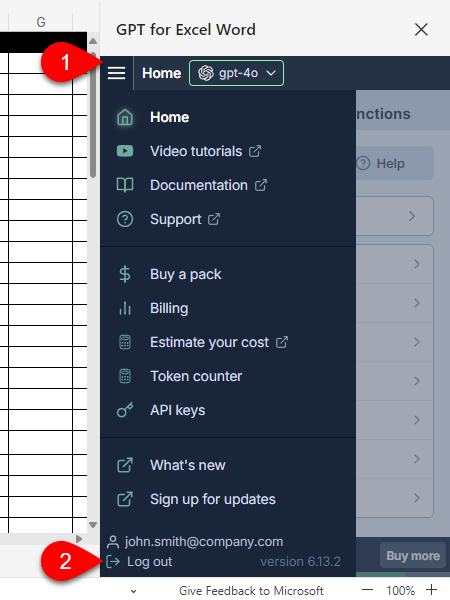
Open the sidebar menu and click Log out to sign out, then sign in again with the correct account. Learn more.
- I want to uninstall
Problem: You are not using the add-in in Excel or Word, and you want to uninstall it.
Solution:
To remove the add-in from Excel and Word, follow our uninstallation guide.
- I can't uninstall GPT for Excel
Problem: GPT for Excel prompts you to be activated every time you open Excel, which may be caused by remaining GPT formulas in your workbook.
Solution:
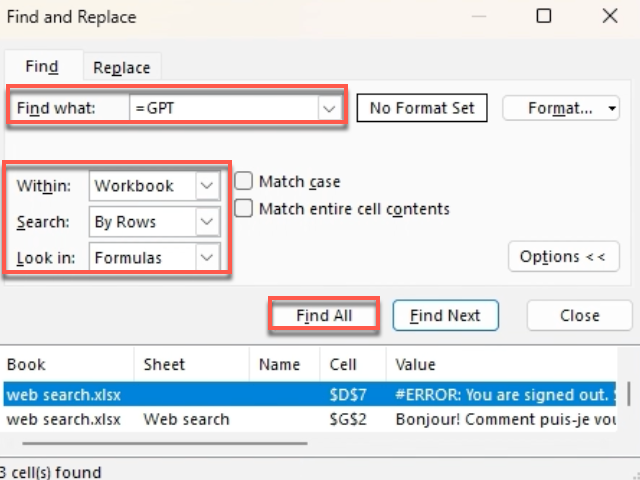
To find and remove all GPT formulas in your workbook (the exact steps may be slightly different in Excel for the web and Excel for Mac):
-
Press Ctrl+F to open the Find and Replace window.
-
Click Options.
-
In Find what, enter
=GPT. -
Set Within to Workbook, and Look in to Formulas.
-
Click Find All.
You can now locate all GPT formulas and delete them.
Problem: You want to uninstall the add-in, but the Remove option is not available in the add-in Options menu in the Office Add-ins popup.
Solution:
Clear the Microsoft Office cache:
-
Close all Office applications.
-
Open Excel and try removing the add-in again.
-
GPT function issues
- Invalid name
#NAME? Invalid Name Error. The formula contains unrecognized text.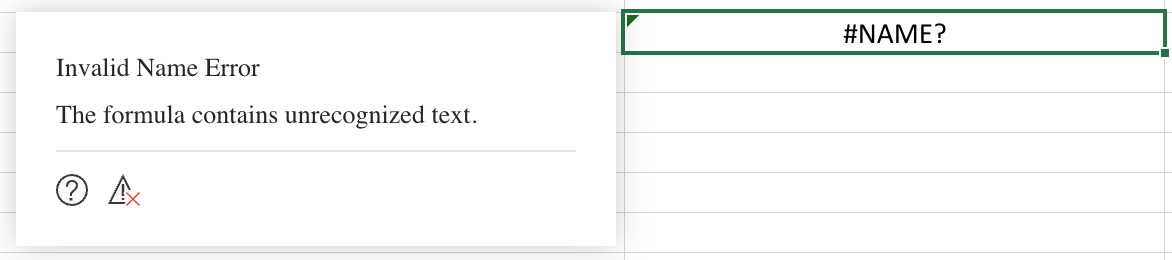
Problem: GPT functions are not recognized by Excel.
Solutions:
-
Check that GPT for Excel is installed on your current Microsoft account.
-
On the ribbon, select Home > GPT for Excel Word to enable the GPT functions.
-
If the problem persists, try activating the add-in (the experience might be slightly different for Mac users):
-
On the ribbon, select Home > Add-ins > More Add-ins. The Office Add-ins dialog opens.
-
Select the My Add-ins tab.
-
Select GPT for Excel Word and click Add.
-
On the ribbon, select Home > GPT for Excel Word.
-
In the sidebar, select GPT functions.
-
Click Retry errors.
-
-
Use the add-in in Excel for the web (see supported versions).
-
- Invalid parameter
Error: Invalid xxx parameter.Problem: The error indicates a formatting issue or an unreadable parameter within the formula.
Solutions:
Check that your parameters are in the correct order. See the function list.
Check that all parameters (even optional ones) are added as empty when there is another parameter coming after them:
✅
GPT_TRANSLATE(A2, "french", , "Avoid passive voice")Check that you are using the right parameter separator for your locale:
,or;Check that you are using the correct number formats for temperature for your locale:
0.8or0,8
- Missing parameter
#ERROR: Missing required arguments categories for function GPT_XXX.Problem: One of the parameters in your GPT formula is required and hasn't been set.
Solution:
Check which parameters are required for the GPT function you are using and adjust the formula as needed.
- Text values limited to 255 characters
Text values in formulas are limited to 255 characters.Problem: The text value in your formula is too long and exceeds Excel's 255-character limit.
Solution:
Insert the text into another cell and reference it in your formula, for example,
=GPT(A1), whereA1contains the text value.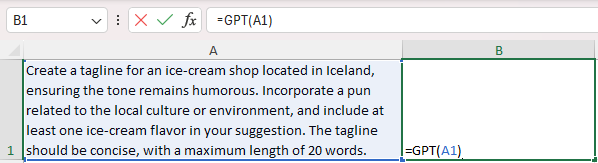
- Functions are stuck on #BUSY
Problem: GPT functions fail to execute and remain in a #BUSY! state, even after reopening your file or restarting Excel.
Solutions:
-
Open the GPT for Excel sidebar before using any GPT functions:
-
On the ribbon, select Home > GPT for Excel Word.
-
Wait for the sidebar to fully load before entering your first GPT formula.
-
-
Delete the GPT formula and undo the deletion to run the formula again.
-
Enter a new GPT formula in a different cell. Subsequent functions typically work correctly.
-
Use bulk tools to avoid this issue in the future, if your use case allows it.
-
- GPT functions prefixed with _xldudf
Problem: After saving, closing, and reopening an Excel workbook, all GPT functions start with
=_xldudf_GPT.Solutions:
-
Open the add-in from the Add-ins menu: Select Home > Add-ins > My Add-ins > GPT for Excel Word.
-
Update to a newer version of Excel, as this issue is often related to compatibility with older Excel versions.
-
Disable other add-ins temporarily:
-
Excel on macOS:
-
On the ribbon, select Home > Add-ins > More Add-ins. The Office Add-ins dialog opens.
-
Select the My Add-ins tab.
-
Hover over an add-in and open its Options menu (⋯).
-
Select Remove to disable the add-in.
-
Repeat for each add-in you want to disable.
-
Restart Excel.
-
-
Excel on Windows:
-
In the menu bar, select File > Options.
-
In the options sidebar, select Add-ins.
-
In the Manage dropdown menu, select COM Add-ins and click Go.
-
Uncheck all the boxes to disable the add-ins.
-
Click OK.
-
Restart Excel.
-
-
-
Bulk tool issues
- The Custom prompt tool is not working
Problem: The Custom prompt bulk tool does not give the desired result, often because the prompt is incomplete or the variables are incorrectly formatted.
Solution:
Review the Custom prompt article for guidance on creating effective prompts and using the tool. If the issue persists, contact support.
API key issues
- I've entered my API key but it's not working
Problem: You have entered an API key in the GPT for Work dashboard but you cannot use the key in the add-in.
Solution:
Even though you have entered an API key, you also need to purchase credits for GPT for Excel. Learn more.
Rate limit issues
- Token limit reached
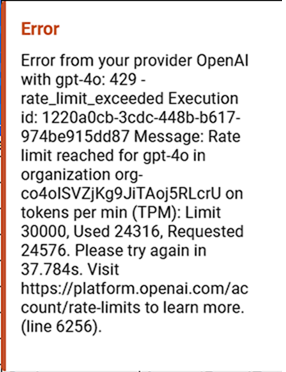
Problem: You are facing a rate limit error message from your AI provider that indicates you've reached your tokens per minute limit.
Solutions:
-
Temporary: Choose a different model, or wait until your token limit resets.
-
Permanent: Use built-in models, which do not require an API key.
-
- Request limit reached
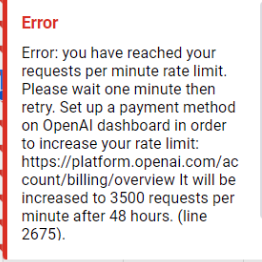
Problem: You are facing a rate limit error message from your AI provider that indicates you've reached your requests per minute limit.
Solutions:
-
Temporary: Choose a different model, or wait until your request limit resets: one minute or 24 hours.
-
Permanent: Use built-in models, which do not require an API key.
-
Add-in not working
- Sidebar is blank or fails to load
Error loading Add-InsProblem: The GPT for Excel sidebar fails to load, or remains blank.
Solutions:
-
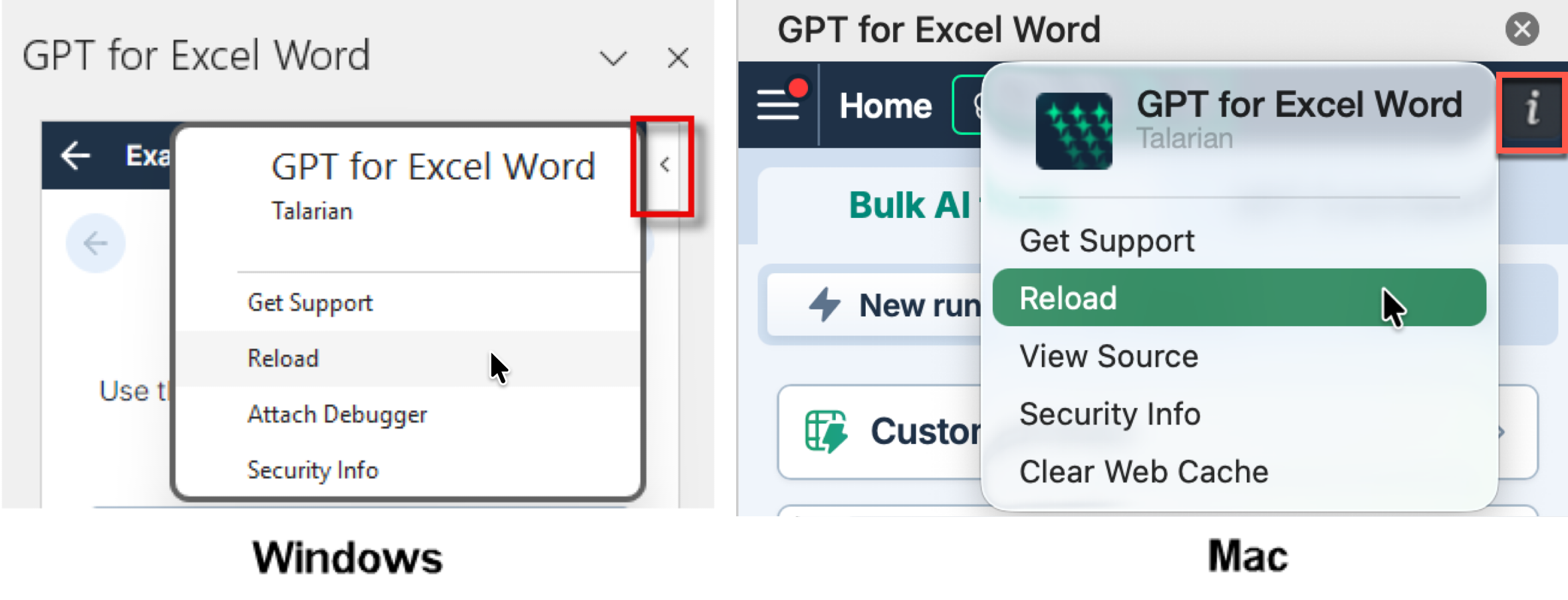
In the desktop version of Excel, open the menu to the right of the sidebar (Windows) or click the info icon (macOS), then click Reload.
-
Restart Excel, create a new workbook, and launch the add-in again by selecting Home > GPT for Excel Word.
-
Refresh the add-ins:
-
On the ribbon, select Home > Add-ins > More Add-ins. The Office Add-ins dialog opens.
-
Select the My Add-ins tab.
-
Click Refresh.
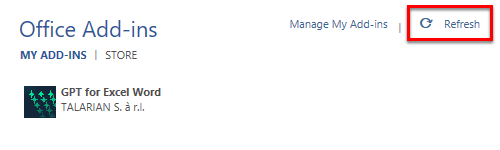
-
-
Clear the Office cache, and then uninstall and reinstall the add-in again:
-
Clear the Office cache:
-
macOS: Follow the Microsoft instructions to clear the Office cache on Mac.
-
Windows: Follow the Microsoft instructions to clear the Office cache on Windows.
-
-
If the issue persists, contact support.
-
- Add-in button is grayed out
Problem: The GPT for Excel Word button is grayed out and unclickable on the ribbon when you open Excel. You cannot open the add-in.
Solutions:
-
Open the add-in from the Add-ins menu: Select Home > Add-ins > My Add-ins > GPT for Excel Word.
-
Open the add-in from the Office Add-ins dialog: See the solution for Add-in button becomes grayed out after click.
-
The add-in only works with
.xlsxfiles. Convert legacy files like.xls,.ods, or.csvto.xlsxfiles. -
Remove any document protection:
-
Excel on macOS: In the macOS Dock, select Tools > Protect Document.
-
Excel on Windows: In the menu bar, select File > Info > Protect Workbook > Protect Current Sheet. Remove all restrictions.
-
-
Disable other add-ins temporarily:
-
Excel on macOS:
-
On the ribbon, select Home > Add-ins > More Add-ins. The Office Add-ins dialog opens.
-
Select the My Add-ins tab.
-
Hover over an add-in and open its Options menu (⋯).
-
Select Remove to disable the add-in.
-
Repeat for each add-in you want to disable.
-
Restart Excel.
-
-
Excel on Windows:
-
In the menu bar, select File > Options.
-
In the options sidebar, select Add-ins.
-
In the Manage dropdown menu, select COM Add-ins and click Go.
-
Uncheck all the boxes to disable the add-ins.
-
Click OK.
-
Restart Excel.
-
-
-
If you're using Excel in Safe Mode, restart it in standard mode. Safe Mode disables all add-ins, including GPT for Excel.
-
Reinstall the add-in directly from Excel if it was installed from a web browser. Browser installations may not work with older Microsoft Office versions.
-
Try repairing Microsoft Office:
-
macOS:
-
Quit all Office apps.
-
Open Finder and select Applications.
-
Locate Microsoft Excel.
-
Drag it to the Trash.
-
Open the App Store and reinstall Office (or download it again from your Microsoft 365 account at https://portal.office.com).
-
-
Windows:
-
In the Windows Start Menu, select Settings.
-
In the settings sidebar, select Apps > Installed apps.
-
Find your Office installation, open its More options menu (⋯), and select Modify.
-
Select Quick Repair and click Repair.
-
If Quick Repair does not work, try Online Repair.
-
-
If the issue persists, contact support.
-
- Add-in button becomes grayed out after click
Problem: The GPT for Excel Word button becomes grayed out and unclickable after you click it on the ribbon. The add-in does not open.
Solution:
Open the add-in from the Office Add-ins dialog:
-
On the ribbon, select Home > Add-ins > More Add-ins. The Office Add-ins dialog opens.
-
Select the My Add-ins tab.
-
Click Refresh.
-
Double-click GPT for Excel Word, or select GPT for Excel Word and click Add.
If you're a Microsoft 365 admin on a business subscription, you can also try opening the add-in from the Admin managed tab instead of the My Add-ins tab.
If the issue persists, contact support.
-
More questions
- How do I install the GPT for Excel add-in?
Install from Microsoft Marketplace:
-
Go to the installation page.
-
Click Open in Excel.
-
Follow the steps until the end.
-
- Which versions of Excel are compatible with this add-in?
The following table lists the minimum versions of Microsoft Excel compatible with the GPT for Excel add-in on different Microsoft Office platforms.
Windows macOS Web Microsoft 365 subscription:
Version 2002 (Build 12527.20092)
Retail perpetual:
Version 2002 (Build 12527.20092)
Volume-licensed perpetual:
Excel 2021: Version 2108 (Build 12527.20092)
Version 16.35 (Build 20030802)
Supported on:
Google Chrome (latest version)
Microsoft Edge (latest version)
- Which version of Excel am I using?
To check your desktop Excel version, see What version of Office am I using? at Microsoft Support.
If you're using Excel for the web, your version is always the latest.
- Which browsers are compatible with GPT for Excel?
GPT for Excel is compatible with the following browsers:
-
Google Chrome (recommended for the best experience)
-
Microsoft Edge (only for Windows users, recommended for the best experience)
-
Mozilla Firefox
-
Safari (only for Mac users)
-
- What permissions are required by the GPT for Excel add-in?
- What is the pricing of GPT for Excel?
GPT for Work has two pricing models. New spaces are on the subscription model, with a monthly fee per seat and an included usage allowance. Existing spaces remain on the pay-as-you-go model, where you buy credits and consume them as you go. To negotiate a custom plan, contact sales.
- Can GPT for Excel analyze PDF files?
Yes, you can use the Fetch content from URL bulk tool to analyze PDF files.
- Can I scrape web pages in Excel?
Yes, you can use the Fetch content from URL bulk tool to retrieve content from specific URLs.
- How can I add users?
You can add users from the dashboard.
If you're on the pay-as-you-go model, you can invite as many users as you need. Everyone draws on the same shared credit balance. If you're on the subscription model, team management is available on Business and Enterprise plans, and each user takes up a seat, so you need an available seat for every user you invite. For more information, see Add and remove users.
- How is my data processed? Is it used to train models?
-
We do not read or store any data from your document that you do not use as an input.
-
If you use a connected model, we do not log or store any of the inputs submitted or outputs received.
-
Whether you use a built-in or connected model, Talarian does not use your inputs and outputs to train language models.
For more information, see the Security and privacy FAQ.
-
- Do I need my own API key?
No. Many models are available as built-in models on both the subscription and pay-as-you-go pricing models. Setting an API key is optional and gives you access to more models, lower costs, and improved privacy.
noteIf you're using GPT for Excel as part of a team space, your space owner and admins control which models are available in the model switcher, regardless of your subscription or API key setup. Learn more.- Can I use my own API key?
On the pay-as-you-go model, yes.
On the subscription model, yes if you're on the Business or Enterprise plan. API keys are not available on the Standard plan.
Using API keys offers several benefits:
-
More models. Access a wider range of models from a bigger pool of AI providers than what is available without an API key.
-
More control. Monitor and manage AI usage and costs directly on the AI provider's platform.
-
Improved privacy. We do not log inputs and outputs when you use a connected model. For more information, see our security and privacy FAQ.
-
Reduced costs. If you're on a pay-as-you-go space, using an API key reduces costs. You pay the model usage fees directly to the AI provider, while paying a reduced service fee for GPT for Work.
infoOn some custom Enterprise plans, using an API key or endpoint is required.
-
- Is GPT for Excel connected to the web?
Yes, all bulk tools and functions in GPT for Excel can access up-to-date information using models with web search capabilities (indicated by the 🌐 icon in the model switcher). You can also use the Fetch content from URL bulk tool to retrieve content from specific URLs.
- Where can I find the list of available GPT functions?
The list along with full documentation and video tutorials is available here. To try out some examples, download our GPT for Excel examples template, and open it in Excel as a new workbook.
- Do formulas reload each time the file is opened?
If you have enabled GPT for Excel cache in your workbook, GPT formulas do not reload. Instead, the results are retrieved from the cache, preventing any extra cost or loss of results.
When the cache is not enabled, GPT formulas follow Excel calculation rules and typically reload each time you move, insert, or delete rows or columns in your workbook. This causes extra costs and can lead to loss of results.
- Can GPT for Excel process images?
Yes, GPT for Excel supports multiple vision models that you can use with the following features:
-
Custom prompt bulk tool
-
Prompt images (Vision) bulk tool
-
GPT_VISION function
-
- Can I reference data located in another sheet in bulk tools?
Yes, in the prompt field of the Custom prompt bulk tool, you can reference cells located in another sheet within the same spreadsheet. Use the following syntax for the reference:
{{SheetName!Cell}}or{{SheetName!Range}}For example, to reference cells A1 to B5 in a sheet named Categories, use:
{{Categories!A1:B5}}- Can I transfer my credits between my Google and Microsoft accounts?
Credits are not directly transferable between platforms, but you can request a credit transfer between your Google and Microsoft accounts. Here's what you need to know:
-
Credits purchased for Microsoft Excel can be used on Microsoft Word and vice versa.
-
Credits purchased for Google Sheets can be used on Google Docs and vice versa.
If you need to transfer your credits between Google and Microsoft accounts, contact our support team.
-
- Is there a limit to the number of requests I can send?
AI providers enforce rate limits in order to ensure a smooth and fair access to everyone. Learn more.
- Why are some features locked?
Some features depend on your plan, not just your credit balance. On the subscription model, features such as team management, centralized billing, and Bring Your Own AI (BYOAI/K/E) are only available on the Business and Enterprise plans. If you have credits available and you're still prompted to upgrade, the feature you're trying to use is not included in your current plan. For more information about what each plan includes, see the plan comparison.
- How do I uninstall the GPT for Excel add-in?
The uninstallation process is described here.
- Which models can I use?
Check our list of supported models.
noteIf you're using GPT for Excel as part of a team space, your space admin can control which models are available in the model switcher. Learn more.- Can I use local models with GPT for Excel?
Yes. GPT for Excel supports integration with any LLM server that provides an OpenAI-compatible API, allowing you to use locally running open-source models:
- Which languages can I use?
Models work in many languages, but deliver the best results in English. All we can say is, try it. It is usually better to prompt in the language you want the response to be in. In any case, avoid mixing languages in a prompt.
- How do I get support?
We recommend checking our troubleshooting and FAQ pages.
If that doesn't help, submit a support request and we'll get back to you.
Our support hours are from Monday to Friday:
-
7:30 PM - 12:00 PM (New York)
-
1:30 AM - 6:00 PM (Paris)
-
5:00 AM - 9:30 PM (India)
-
8:30 AM - 1:00 AM (Tokyo)
-
Billing issues
- I have a ChatGPT subscription, but I still need to buy credits
Problem: You have a ChatGPT subscription, but GPT for Word still says that you need to buy credits.
Solution:
You do not need an OpenAI ChatGPT subscription (Go, Plus, Pro, Business, or Enterprise plan) to use GPT for Work. If you have a ChatGPT subscription, you cannot use it with GPT for Work.
- I bought a pack but I still have no credits
Problem: You have bought credits but GPT for Word still shows zero credits.
Solution:
Check which account you are using in GPT for Word and make sure it is the account with which you have purchased your credits. Switch to another account if needed.
- My packs have disappeared from the tracking screen
Problem: You have bought credits and used GPT for Word but now your credit packs have disappeared from the usage tracking screen.
Solution:
Check which account you are using in GPT for Word and make sure it is the account with which you have bought your credit packs. Switch to another account if needed.
- I have a subscription, but the add-in says I've reached my usage limit
Problem: You are on a subscription plan, but GPT for Word says that you reached your usage limit.
Solution:
This happens when your seat's monthly usage credits are used up and one of the following is also true:
-
The space's shared extra-usage credits are empty or expired.
-
The space's monthly limit has been reached.
-
You have reached your user monthly limit.
If you are the space owner or an admin, buy extra-usage credits or raise the limit that was reached. Otherwise, ask your space owner or admin to do so.
You can also wait for your next renewal, when your seat's monthly usage credits reset. The Billing page in the GPT for Work dashboard shows the reset date.
-
- I have extra-usage credits that I can't use
Problem: You have extra-usage credits, but you can't use them.
Solution:
You need an active subscription to use extra-usage credits. If your subscription is canceled or a renewal payment failed, your extra-usage balance is preserved, but you cannot use it. To use it again, renew your subscription or start a new one from the Billing page in the GPT for Work dashboard. Extra-usage credits still expire 12 months after your last purchase, even while your subscription is inactive.
- My renewal payment failed
Problem: Your subscription renewal payment failed.
Solution:
If you are the space owner or an admin, update your payment method and pay the outstanding invoice from the GPT for Work dashboard:
-
In the sidebar, select Billing.
-
Click Payment method to open the Stripe Customer Portal, and update your payment method.
-
Back on the Billing page, click Pay now. If you skip this step, the payment is retried automatically over the next few days.
If you are not the space owner or an admin, ask them to update the payment method.
-
- I paid for a subscription, but the add-in still says my free trial ended
Problem: You upgraded to a paid subscription, but GPT for Word still says that your free trial ended or asks you to upgrade.
Solution:
GPT for Word may still show your previous subscription status. To update the status, click refresh in the message, or close and reopen the GPT for Word sidebar.
If the message persists, you may be signed in to GPT for Word with a different account than the one you used to buy the subscription. Check which account you are using in GPT for Word, then switch to another account if needed.
Pricing and billing FAQ - Subscription
- How do I know what type of plan I'm on?
Open the GPT for Work dashboard. If the badge next to SPACE in the left sidebar shows Pay-as-you-go, your space is on the pay-as-you-go model. If it shows a plan name, your space is on the subscription model.
- Can I switch between the subscription and pay-as-you-go models?
No, not directly. Your pricing model is assigned automatically based on when your space was created: Subscription is rolling out to some new spaces, while existing spaces remain on pay-as-you-go. To ask about moving your space to a different pricing model, contact support.
- How can I buy more credits?
You can buy credits at any time from the GPT for Work dashboard. Packs feed the shared extra-usage credits and can only be bought while your subscription is active.
- How are credits consumed?
Each seat's monthly usage credits are consumed first, then the shared extra-usage credits. For more information about credit consumption, see How credits are consumed.
- Do credits expire?
Credit packs expire one year after your last purchase. Buy more credits at any time to reset the expiry to one year.
Example: You have $100 worth of credits. Your last purchase was 7 months ago, so these credits will expire in 5 months. You buy $29 worth of credits. You now have $129 worth of credits, which will expire in 12 months.
The monthly usage credits are separate: they reset at every renewal and do not roll over.
- Do I need credits if I set an API key or endpoint?
Yes, you need credits even if you use an API key or endpoint. Models available through an API key have their own pricing. Models available through a dedicated endpoint do not consume credits, but require credits to be available.
- Can I share credits with my team?
Each seat has its own monthly usage credits, and the extra-usage credits are pooled across the whole space.
- Can I share credits between Google and Microsoft accounts?
-
Credits bought for Google Sheets can be used on Google Docs, and vice versa.
-
Credits bought for Microsoft Excel can be used on Microsoft Word, and vice versa.
To transfer credits between Google and Microsoft accounts, contact support.
-
- Can I transfer my credits to another account?
To transfer your credits to another account, contact support.
- Can I set an auto top-up?
No, but you can buy larger packs to have your credits last longer.
- Can I pause usage?
No, but you can set spending limits for extra usage to keep credit consumption under control. Learn more.
- Can I set credit usage limits?
Yes. You can set a monthly spending limit for your space and individual monthly limits per user from the Limits page in the GPT for Work dashboard. Spending limits apply only to the shared extra-usage credits. Learn more.
- How do I raise the monthly limit for my space or a user?
If you or your team hit a monthly limit, a space owner or admin can raise or remove it from the Limits screen in the GPT for Work dashboard. Monthly limits apply only to the shared extra-usage credits and are available on Business and Enterprise plans. Each seat's monthly usage credits cannot be raised. Learn more.
- Why is my balance negative?
Before each run, the add-on estimates the cost and blocks the run if your balance is too low. If the final cost exceeds the estimate, your balance can go negative by a small amount. This amount is deducted from the following billing cycle.
- Can I get a refund?
We do not offer refunds. We encourage you to carefully consider how many credits you need before buying extra-usage credits.
Pricing and billing FAQ - Pay-as-you-go
- How do I know what type of plan I'm on?
Open the GPT for Work dashboard. If the badge next to SPACE in the left sidebar shows Pay-as-you-go, your space is on the pay-as-you-go model. If it shows a plan name, your space is on the subscription model.
- Can I switch between the subscription and pay-as-you-go models?
No, not directly. Your pricing model is assigned automatically based on when your space was created: Subscription is rolling out to some new spaces, while existing spaces remain on pay-as-you-go. To ask about moving your space to a different pricing model, contact support.
- How can I buy more credits?
You can buy credits at any time from the GPT for Work dashboard.
- How many credits do I need?
To estimate your credit usage, try our estimation tools.
- How are credits consumed?
- What's a token?
A token is a unit of text, such as a word, subword, punctuation mark, or symbol. Models split all input and output text into tokens for processing. Model providers use tokens as the basic unit for measuring model usage. Input tokens from your prompt and output tokens from the model's response contribute to your credit consumption. For more information, see Tokens and How credits are consumed.
- Do credits expire?
Credit packs expire one year after your last purchase. Buy more credits at any time to reset the expiry to one year.
Example: You have $100 worth of credits. Your last purchase was 7 months ago, so these credits will expire in 5 months. You buy $29 worth of credits. You now have $129 worth of credits, which will expire in 12 months.
- Do I need credits if I set an API key or endpoint?
Yes, you need credits even if you use an API key or endpoint. Models available through an API key have their own pricing. Models available through a dedicated endpoint do not consume credits, but require credits to be available.
- Can I share credits with my team?
Yes. Team members share the same credits.
- Can I share credits between Google and Microsoft accounts?
-
Credits bought for Google Sheets can be used on Google Docs, and vice versa.
-
Credits bought for Microsoft Excel can be used on Microsoft Word, and vice versa.
To transfer credits between Google and Microsoft accounts, contact support.
-
- Can I transfer my credits to another account?
To transfer your credits to another account, contact support.
- Can I set an auto top-up?
No, but you can buy larger packs to have your credits last longer.
- Can I pause usage?
No, but you can set spending limits to keep credit consumption under control. Learn more.
- Can I set credit usage limits?
Yes. You can set a monthly spending limit for your space and individual monthly limits per user from the Limits page in the GPT for Work dashboard. Learn more.
- How do I raise the monthly limit for my space or a user?
If you or your team hit a monthly limit, a space owner or admin can raise or remove it from the Limits screen in the GPT for Work dashboard. Learn more.
- Why is my balance negative?
Before each run, the add-on estimates the cost and blocks the run if your balance is too low. If the final cost exceeds the estimate, your balance can go negative by a small amount. This amount is deducted from your next credit pack purchase.
- Can I get a refund?
We do not offer refunds. We encourage you to carefully consider how many credits you need before buying credits.
- Do errors consume credits?
Yes. Input tokens are always billed. If a request times out, output tokens are billed as well. To avoid timeouts, use the Agent or the bulk tools.
Output issues
- Response is cut or incomplete
Problem: The response you get from GPT for Word seems truncated.
Solution:
Models have a maximum token limit, which is the maximum total number of tokens that can be used in both the input and the response. This means models may not provide complete responses to long queries or when a large portion of text is selected as input.
To stay within the token limit, you can:
-
In the sidebar, click Clear chat to delete your chat history.
-
Break up your work into smaller parts.
-
Select a model with a higher limit.
-
- Responses don't make sense
Problem: The responses you get from GPT for Word don't match your requests.
Solution:
- Click on Clear chat to delete your chat history. This deletes previous chat messages that might interfere with your current request.
- Refine your prompt and/or select a different model. See our examples for guidance.
API key issues
- I've entered my API key but it's not working
Problem: You have entered an API key in the GPT for Work dashboard but you cannot use the key in the add-in.
Solution:
Even though you have entered an API key, you also need to purchase credits for GPT for Word. Learn more.
Rate limit issues
- Token limit is reached
Problem: You are facing a rate limit error message from your AI provider that indicates you've reached your tokens per minute limit.
Solutions:
-
Temporary: Choose a different model, or wait until your token limit resets.
-
Permanent: Use built-in models, which do not require an API key.
-
- Request limit is reached
Problem: You are facing a rate limit error message from your AI provider that indicates you've reached your requests per minute limit.
Solutions:
-
Temporary: Choose a different model, or wait until your request limit resets: one minute or 24 hours.
-
Permanent: Use built-in models, which do not require an API key.
-
Installation issues
- I can't sign in after installing
Problem: You have installed GPT for Word and you have trouble signing in with Microsoft.
Solutions:
-
Check which versions of Word and which browsers are supported by this add-in.
-
Try using Word for the web instead of the desktop version.
-
Try using Word for the web in a private/incognito window.
-
If you're using a firewall or proxy, whitelist the required domains.
-
- The add-in doesn't load
Problem: If your organization uses a firewall or proxy, it may prevent the add-in from loading.
Solution:
Ask your IT administrator to whitelist the following domains:
*.gptforwork.com*.microsoft.com*.microsoftonline.com*.live.com*.office.com- The add-in update doesn't complete
Problem: GPT for Word shows an update prompt, but clicking Update does not complete the update. The same prompt appears every time you reopen the add-in.
Solution:
This can happen when Office uses a stale cached version of the add-in. Clear the Microsoft Office cache to force Office to re-fetch the latest version:
-
Close all Office applications.
-
Open Word and try again.
If the issue persists after clearing the cache, restart the computer and reopen Word.
noteClearing the Office cache may reset some of your Word application settings.
-
- I signed in with the wrong account
Problem: You signed in with the wrong account while installing GPT for Word and need to switch to the correct one.
Solution:
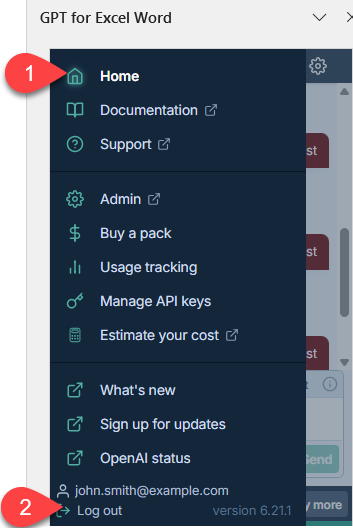
Open the sidebar menu and click Log out to sign out, then sign in again with the correct account. Learn more.
- I want to uninstall
Problem: You are not using the add-in in Word or Excel, and you want to uninstall it.
Solution:
To remove the add-in from Word and Excel, follow our uninstallation guide.
- I can't uninstall GPT for Word
Problem: You want to uninstall the add-in, but the Remove option is not available in the add-in Options menu in the Office Add-ins popup.
Solution:
Clear the Microsoft Office cache:
-
Close all Office applications.
-
Open Word and try removing the add-in again.
-
Add-in not working
- Sidebar is blank or fails to load
Error loading Add-InsProblem: The GPT for Word sidebar fails to load, or remains blank.
Solutions:
-
In the desktop version of Word, open the menu to the right of the sidebar (Windows) or click the info icon (macOS), then click Reload.
-
Restart Word, create a new document, and launch the add-in again by selecting Home > GPT for Excel Word.
-
Refresh the add-ins:
-
On the ribbon, select Home > Add-ins > More Add-ins. The Office Add-ins dialog opens.
-
Select the My Add-ins tab.
-
Click Refresh.
-
-
Clear the Office cache, and then uninstall and reinstall the add-in again:
-
Clear the Office cache:
-
macOS: Follow the Microsoft instructions to clear the Office cache on Mac.
-
Windows: Follow the Microsoft instructions to clear the Office cache on Windows.
-
-
If the issue persists, contact support.
-
- Add-in button is grayed out
Problem: The GPT for Excel Word button is grayed out and unclickable on the ribbon when you open Word. You cannot open the add-in.
Solutions:
-
Open the add-in from the Add-ins menu: Select Home > Add-ins > My Add-ins > GPT for Excel Word.
-
Open the add-in from the Office Add-ins dialog: See the solution for Add-in button becomes grayed out after click.
-
The add-in only works with
.docxfiles. Convert legacy files like.doc,.odt, or.txtto.docxfiles. -
Remove any document protection:
-
Word on macOS: In the macOS Dock, select Tools > Protect Document.
-
Word on Windows: In the menu bar, select File > Info > Protect Document > Restrict Editing. Remove all restrictions.
-
-
Disable other add-ins temporarily:
-
Word on macOS:
-
On the ribbon, select Home > Add-ins > More Add-ins. The Office Add-ins dialog opens.
-
Select the My Add-ins tab.
-
Hover over an add-in and open its Options menu (⋯).
-
Select Remove to disable the add-in.
-
Repeat for each add-in you want to disable.
-
Restart Word.
-
-
Word on Windows:
-
In the menu bar, select File > Options.
-
In the options sidebar, select Add-ins.
-
In the Manage dropdown menu, select COM Add-ins and click Go.
-
Uncheck all the boxes to disable the add-ins.
-
Click OK.
-
Restart Word.
-
-
-
If you're using Word in Safe Mode, restart it in standard mode. Safe Mode disables all add-ins, including GPT for Word.
-
Reinstall the add-in directly from Word if it was installed from a web browser. Browser installations may not work with older Microsoft Office versions.
-
Try repairing Microsoft Office:
-
macOS:
-
Quit all Office apps.
-
Open Finder and select Applications.
-
Locate Microsoft Word.
-
Drag it to the Trash.
-
Open the App Store and reinstall Office (or download it again from your Microsoft 365 account at https://portal.office.com).
-
-
Windows:
-
In the Windows Start Menu, select Settings.
-
In the settings sidebar, select Apps > Installed apps.
-
Find your Office installation, open its More options menu (⋯), and select Modify.
-
Select Quick Repair and click Repair.
-
If Quick Repair does not work, try Online Repair.
-
-
If the issue persists, contact support.
-
- Add-in button becomes grayed out after click
Problem: The GPT for Excel Word button becomes grayed out and unclickable after you click it on the ribbon. The add-in does not open.
Solution:
Open the add-in from the Office Add-ins dialog:
-
On the ribbon, select Home > Add-ins > More Add-ins. The Office Add-ins dialog opens.
-
Select the My Add-ins tab.
-
Click Refresh.
-
Double-click GPT for Excel Word, or select GPT for Excel Word and click Add.
If you're a Microsoft 365 admin on a business subscription, you can also try opening the add-in from the Admin managed tab instead of the My Add-ins tab.
If the issue persists, contact support.
-
More questions
- How do I install the GPT for Word add-in?
Install from Microsoft Marketplace:
-
Go to the installation page.
-
Click Open in Word.
-
Follow the steps until the end.
-
- Which versions of Word are compatible with this add-in?
The following table lists the minimum versions of Microsoft Word compatible with the GPT for Word add-in on different Microsoft Office platforms.

Windows macOS Web Microsoft 365 subscription:
Version 2205 (Build 15202.10000)
Retail perpetual:
Version 2205 (Build 15202.10000)
Volume-licensed perpetual:
Word 2024: Version 2205 (Build 15202.10000)
Version 16.61 (Build 22040100)
Supported on:
Google Chrome (latest version)
Microsoft Edge (latest version)
- Which version of Word am I using?
To check your desktop Word version, see What version of Office am I using? at Microsoft Support.
If you're using Word for the web, your version is always the latest.
- Which browsers are compatible with GPT for Word?
GPT for Word is compatible with the following browsers:
-
Google Chrome (recommended for the best experience)
-
Microsoft Edge (only for Windows users, recommended for the best experience)
-
Mozilla Firefox
-
Safari (only for Mac users)
-
- What permissions are required by the GPT for Word add-in?
- I have installed GPT for Word, how do I get started?
Now that GPT for Word is installed, you can launch it from the Microsoft Word Home tab and start chatting with your Word documents.
- What is the pricing of GPT for Word?
GPT for Work has two pricing models. New spaces are on the subscription model, with a monthly fee per seat and an included usage allowance. Existing spaces remain on the pay-as-you-go model, where you buy credits and consume them as you go. To negotiate a custom plan, contact sales.
- How can I add users?
You can add users from the dashboard.
If you're on the pay-as-you-go model, you can invite as many users as you need. Everyone draws on the same shared credit balance. If you're on the subscription model, team management is available on Business and Enterprise plans, and each user takes up a seat, so you need an available seat for every user you invite. For more information, see Add and remove users.
- How is my data processed? Is it used to train models?
-
We do not read or store any data from your document that you do not use as an input.
-
If you use a connected model, we do not log or store any of the inputs submitted or outputs received.
-
Whether you use a built-in or connected model, Talarian does not use your inputs and outputs to train language models.
For more information, see the Security and privacy FAQ.
-
- Do I need my own API key?
No. Many models are available as built-in models on both the subscription and pay-as-you-go pricing models. Setting an API key is optional and gives you access to more models, lower costs, and improved privacy.
noteIf you're using GPT for Word as part of a team space, your space owner and admins control which models are available in the model switcher, regardless of your subscription or API key setup. Learn more.- Can I use my own API key?
On the pay-as-you-go model, yes.
On the subscription model, yes if you're on the Business or Enterprise plan. API keys are not available on the Standard plan.
Using API keys offers several benefits:
-
More models. Access a wider range of models from a bigger pool of AI providers than what is available without an API key.
-
More control. Monitor and manage AI usage and costs directly on the AI provider's platform.
-
Improved privacy. We do not log inputs and outputs when you use a connected model. For more information, see our security and privacy FAQ.
-
Reduced costs. If you're on a pay-as-you-go space, using an API key reduces costs. You pay the model usage fees directly to the AI provider, while paying a reduced service fee for GPT for Work.
infoOn some custom Enterprise plans, using an API key or endpoint is required.
-
- Is GPT for Word connected to the web?
Yes, GPT for Word can access up-to-date information using models with web search capabilities (indicated by the 🌐 icon in the model switcher).
- Can I scrape web pages in Word?
Yes. You can scrape specific web pages using GPT for Word and Google Gemini 2.5 models with URL context.
- How can I ask questions about my document?
Select some text or the whole document to include the selection as context for your prompt in the chat.
- Can GPT for Word analyze PDF files?
Yes. You can analyze PDF files using GPT for Word and Google Gemini 2.5 models with URL context.
- Why is my response cut or incomplete?
Models have a maximum token limit, which is the maximum total number of tokens that can be used in both the input and the response. This means models may not provide complete responses to long queries or when a large portion of text is selected as input.
To stay within the token limit, you can:
-
In the sidebar, click Clear chat to delete your chat history.
-
Break up your work into smaller parts.
-
Select a model with a higher limit.
-
- Can I transfer my credits between my Google and Microsoft accounts?
Credits are not directly transferable between platforms, but you can request a credit transfer between your Google and Microsoft accounts. Here's what you need to know:
-
Credits purchased for Microsoft Excel can be used on Microsoft Word and vice versa.
-
Credits purchased for Google Sheets can be used on Google Docs and vice versa.
If you need to transfer your credits between Google and Microsoft accounts, contact our support team.
-
- Is there a limit to the number of requests I can send?
AI providers enforce rate limits in order to ensure a smooth and fair access to everyone. Learn more.
- Why are some features locked?
Some features depend on your plan, not just your credit balance. On the subscription model, features such as team management, centralized billing, and Bring Your Own AI (BYOAI/K/E) are only available on the Business and Enterprise plans. If you have credits available and you're still prompted to upgrade, the feature you're trying to use is not included in your current plan. For more information about what each plan includes, see the plan comparison.
- How do I uninstall the GPT for Word add-in?
The uninstallation process is described here.
- Which models can I use?
Check our list of supported models.
noteIf you're using GPT for Word as part of a team space, your space admin can control which models are available in the model switcher. Learn more.- Can I use local models with GPT for Word?
Yes. GPT for Word supports integration with any LLM server that provides an OpenAI-compatible API, allowing you to use locally running open-source models:
- Which languages can I use?
Models work in many languages, but deliver the best results in English. All we can say is, try it. It is usually better to prompt in the language you want the response to be in. In any case, avoid mixing languages in a prompt.
- How do I get support?
We recommend checking our troubleshooting and FAQ pages.
If that doesn't help, submit a support request and we'll get back to you.
Our support hours are from Monday to Friday:
-
7:30 PM - 12:00 PM (New York)
-
1:30 AM - 6:00 PM (Paris)
-
5:00 AM - 9:30 PM (India)
-
8:30 AM - 1:00 AM (Tokyo)
-
Billing issues
- I have a ChatGPT subscription, but I still need to buy credits
Problem: You have a ChatGPT subscription, but GPT for Sheets still says that you need to buy credits.
Solution:
You do not need an OpenAI ChatGPT subscription (Go, Plus, Pro, Business, or Enterprise plan) to use GPT for Work. If you have a ChatGPT subscription, you cannot use it with GPT for Work.
- I bought a pack but I still have no credits
Problem: You have bought credits but GPT for Sheets still shows zero credits.
Solution:
Check which account you are using in GPT for Sheets and make sure it is the account with which you have purchased your credits. Switch to another account if needed.
- My packs have disappeared from the tracking screen
Problem: You have bought credits and used GPT for Sheets but now your credit packs have disappeared from the usage tracking screen.
Solution:
Check which account you are using in GPT for Sheets and make sure it is the account with which you have bought your credit packs. Switch to another account if needed.
- I get charged when I'm not using GPT for Sheets
Problem: Google Sheets automatically reloads all formulas every few hours. This includes GPT formulas and can lead to unexpected costs.
Solutions:
GPT for Sheets offers a variety of options to control recalculations:
-
To save results permanently and prevent formula reloading, replace GPT formulas with their results in selected cells or across an entire sheet.
-
To store results, enable the cache.
-
To prevent new executions in your spreadsheet, disable GPT formulas.
-
- I have a subscription, but the add-on says I've reached my usage limit
Problem: You are on a subscription plan, but GPT for Sheets says that you reached your usage limit.
Solution:
This happens when your seat's monthly usage credits are used up and one of the following is also true:
-
The space's shared extra-usage credits are empty or expired.
-
The space's monthly limit has been reached.
-
You have reached your user monthly limit.
If you are the space owner or an admin, buy extra-usage credits or raise the limit that was reached. Otherwise, ask your space owner or admin to do so.
You can also wait for your next renewal, when your seat's monthly usage credits reset. The Billing page in the GPT for Work dashboard shows the reset date.
-
- I have extra-usage credits that I can't use
Problem: You have extra-usage credits, but you can't use them.
Solution:
You need an active subscription to use extra-usage credits. If your subscription is canceled or a renewal payment failed, your extra-usage balance is preserved, but you cannot use it. To use it again, renew your subscription or start a new one from the Billing page in the GPT for Work dashboard. Extra-usage credits still expire 12 months after your last purchase, even while your subscription is inactive.
- My renewal payment failed
Problem: Your subscription renewal payment failed.
Solution:
If you are the space owner or an admin, update your payment method and pay the outstanding invoice from the GPT for Work dashboard:
-
In the sidebar, select Billing.
-
Click Payment method to open the Stripe Customer Portal, and update your payment method.
-
Back on the Billing page, click Pay now. If you skip this step, the payment is retried automatically over the next few days.
If you are not the space owner or an admin, ask them to update the payment method.
-
- I paid for a subscription, but the add-on still says my free trial ended
Problem: You upgraded to a paid subscription, but GPT for Sheets still says that your free trial ended or asks you to upgrade.
Solution:
GPT for Sheets may still show your previous subscription status. To update the status, click refresh in the message, or close and reopen the GPT for Sheets sidebar.
If the message persists, you may be signed in to GPT for Sheets with a different account than the one you used to buy the subscription. Check which account you are using in GPT for Sheets, then switch to another account if needed.
Pricing and billing FAQ - Subscription
- How do I know what type of plan I'm on?
Open the GPT for Work dashboard. If the badge next to SPACE in the left sidebar shows Pay-as-you-go, your space is on the pay-as-you-go model. If it shows a plan name, your space is on the subscription model.
- Can I switch between the subscription and pay-as-you-go models?
No, not directly. Your pricing model is assigned automatically based on when your space was created: Subscription is rolling out to some new spaces, while existing spaces remain on pay-as-you-go. To ask about moving your space to a different pricing model, contact support.
- How can I buy more credits?
You can buy credits at any time from the GPT for Work dashboard. Packs feed the shared extra-usage credits and can only be bought while your subscription is active.
- How are credits consumed?
Each seat's monthly usage credits are consumed first, then the shared extra-usage credits. For more information about credit consumption, see How credits are consumed.
- Do credits expire?
Credit packs expire one year after your last purchase. Buy more credits at any time to reset the expiry to one year.
Example: You have $100 worth of credits. Your last purchase was 7 months ago, so these credits will expire in 5 months. You buy $29 worth of credits. You now have $129 worth of credits, which will expire in 12 months.
The monthly usage credits are separate: they reset at every renewal and do not roll over.
- Do I need credits if I set an API key or endpoint?
Yes, you need credits even if you use an API key or endpoint. Models available through an API key have their own pricing. Models available through a dedicated endpoint do not consume credits, but require credits to be available.
- Can I share credits with my team?
Each seat has its own monthly usage credits, and the extra-usage credits are pooled across the whole space.
- Can I share credits between Google and Microsoft accounts?
-
Credits bought for Google Sheets can be used on Google Docs, and vice versa.
-
Credits bought for Microsoft Excel can be used on Microsoft Word, and vice versa.
To transfer credits between Google and Microsoft accounts, contact support.
-
- Can I transfer my credits to another account?
To transfer your credits to another account, contact support.
- Can I set an auto top-up?
No, but you can buy larger packs to have your credits last longer.
- Can I pause usage?
No, but you can set spending limits for extra usage to keep credit consumption under control. Learn more.
- Can I set credit usage limits?
Yes. You can set a monthly spending limit for your space and individual monthly limits per user from the Limits page in the GPT for Work dashboard. Spending limits apply only to the shared extra-usage credits. Learn more.
- How do I raise the monthly limit for my space or a user?
If you or your team hit a monthly limit, a space owner or admin can raise or remove it from the Limits screen in the GPT for Work dashboard. Monthly limits apply only to the shared extra-usage credits and are available on Business and Enterprise plans. Each seat's monthly usage credits cannot be raised. Learn more.
- Why is my balance negative?
Before each run, the add-on estimates the cost and blocks the run if your balance is too low. If the final cost exceeds the estimate, your balance can go negative by a small amount. This amount is deducted from the following billing cycle.
- Can I get a refund?
We do not offer refunds. We encourage you to carefully consider how many credits you need before buying extra-usage credits.
Pricing and billing FAQ - Pay-as-you-go
- How do I know what type of plan I'm on?
Open the GPT for Work dashboard. If the badge next to SPACE in the left sidebar shows Pay-as-you-go, your space is on the pay-as-you-go model. If it shows a plan name, your space is on the subscription model.
- Can I switch between the subscription and pay-as-you-go models?
No, not directly. Your pricing model is assigned automatically based on when your space was created: Subscription is rolling out to some new spaces, while existing spaces remain on pay-as-you-go. To ask about moving your space to a different pricing model, contact support.
- How can I buy more credits?
You can buy credits at any time from the GPT for Work dashboard.
- How many credits do I need?
To estimate your credit usage, try our estimation tools.
- How are credits consumed?
- What's a token?
A token is a unit of text, such as a word, subword, punctuation mark, or symbol. Models split all input and output text into tokens for processing. Model providers use tokens as the basic unit for measuring model usage. Input tokens from your prompt and output tokens from the model's response contribute to your credit consumption. For more information, see Tokens and How credits are consumed.
- Do credits expire?
Credit packs expire one year after your last purchase. Buy more credits at any time to reset the expiry to one year.
Example: You have $100 worth of credits. Your last purchase was 7 months ago, so these credits will expire in 5 months. You buy $29 worth of credits. You now have $129 worth of credits, which will expire in 12 months.
- Do I need credits if I set an API key or endpoint?
Yes, you need credits even if you use an API key or endpoint. Models available through an API key have their own pricing. Models available through a dedicated endpoint do not consume credits, but require credits to be available.
- Can I share credits with my team?
Yes. Team members share the same credits.
- Can I share credits between Google and Microsoft accounts?
-
Credits bought for Google Sheets can be used on Google Docs, and vice versa.
-
Credits bought for Microsoft Excel can be used on Microsoft Word, and vice versa.
To transfer credits between Google and Microsoft accounts, contact support.
-
- Can I transfer my credits to another account?
To transfer your credits to another account, contact support.
- Can I set an auto top-up?
No, but you can buy larger packs to have your credits last longer.
- Can I pause usage?
No, but you can set spending limits to keep credit consumption under control. Learn more.
- Can I set credit usage limits?
Yes. You can set a monthly spending limit for your space and individual monthly limits per user from the Limits page in the GPT for Work dashboard. Learn more.
- How do I raise the monthly limit for my space or a user?
If you or your team hit a monthly limit, a space owner or admin can raise or remove it from the Limits screen in the GPT for Work dashboard. Learn more.
- Why is my balance negative?
Before each run, the add-on estimates the cost and blocks the run if your balance is too low. If the final cost exceeds the estimate, your balance can go negative by a small amount. This amount is deducted from your next credit pack purchase.
- Can I get a refund?
We do not offer refunds. We encourage you to carefully consider how many credits you need before buying credits.
- Do errors consume credits?
Yes. Input tokens are always billed. If a request times out, output tokens are billed as well. To avoid timeouts, use the Agent or the bulk tools.
Installation issues
- The add-on doesn't load / I can't sign in
Problem: If your organization uses a firewall or proxy, it may prevent the add-on from loading or from authenticating your user account.
Solution:
Ask your IT administrator to whitelist the following domains:
*.gptforwork.com*.google.com*.googleapis.com*.googleusercontent.com- I want to uninstall
Problem: You are not using the add-on in Sheets or Docs, and you want to uninstall it.
Solution:
To remove the add-on from Sheets and Docs, follow our uninstallation guide.
GPT function issues
- Functions are stuck on "Loading"

Problem: GPT functions fail to execute and remain in a loading state.
Functions sometimes get stuck on loading for unknown reasons, it is a bug in Google Sheets/Google Apps Script, as per the official issue tracker. In most cases, functions start working again within 24 hours.
Solutions:
Try the following solutions:
-
In the original spreadsheet:
-
In a new spreadsheet:
-
Create a new blank spreadsheet.
-
In the menu bar, select Extensions > GPT for Sheets and Docs > Enable GPT functions.
-
To test that GPT functions work, enter
=GPT("hello")in any cell and check that the formula generates a proper "hello" response. -
If the GPT function worked as expected, delete the formula and copy the contents of the original spreadsheet into the new spreadsheet.
-
Disable GPT functions in the original spreadsheet. This prevents unexpected costs when the functions suddenly become unstuck, which usually happens within 24 hours.
-
-
- Additional configuration required
Additional configuration required. Open the sidebar: Extensions > GPT for Sheets™ and Docs™ > Open.GPT functions are not working if the sidebar has not been initially opened. Open the GPT for Sheets sidebar to get started. Check your permissions in the spreadsheet to ensure you can execute GPT functions.
- Script error
ScriptError: Authorisation is required to perform that action.
Problem: You are likely using multiple Google accounts in the same browsing session.
Solution:
-
Create a dedicated browser profile on Google Chrome, Microsoft Edge, or Apple Safari.
- Create a new spreadsheet.
-
Open the GPT for Sheets and Docs add-on again.
-
- Invalid parameter
Error: Invalid xxx parameter.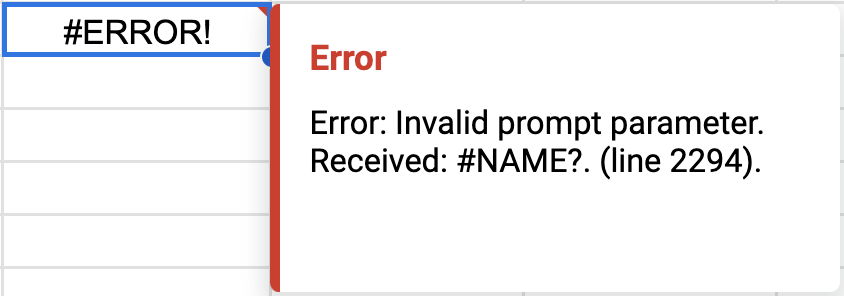
Problem: The error indicates a formatting issue or an unreadable parameter within the formula.
Solutions:
Check that you have quotation marks around your text if it's not in a cell:
✅
=GPT("hello")✅
=GPT(A1)❌
=GPT(hello)Check that your parameters are in the correct order. See the function list.
Check that all parameters (even optional ones) are added as empty when there is another parameter coming after them:
✅
GPT_TRANSLATE(A2, "french", , "Avoid passive voice")Check that you are using the right parameter separator for your locale:
,or;Check that you are using the correct number formats for temperature for your locale:
0.8or0,8
- Error: #NAME? Unknown function
Error: #NAME? Unknown function: 'GPT'Problem: This error is caused by one of the following:
-
The GPT for Sheets and Docs add-on is not installed.
-
GPT functions have not been enabled in the spreadsheet.
-
Google Sheets has stopped recognizing GPT functions in the spreadsheet.
Solutions:
Try the following solutions in order:
-
In the menu bar, select Extensions and check for GPT for Sheets and Docs. If the add-on is not listed, install it.
-
Enable GPT functions:
-
If you're the creator of the spreadsheet: In the menu bar, select Extensions > GPT for Sheets and Docs > Enable GPT functions.
-
If you're not the creator of the spreadsheet: Ask the creator to enable GPT functions for you, or make a copy of the spreadsheet for yourself.
-
-
Reload the add-on for the spreadsheet:
-
In the menu bar, select Extensions > Add-ons > Manage add-ons.
-
In the list of installed apps, find GPT for Sheets and Docs and click its options button.
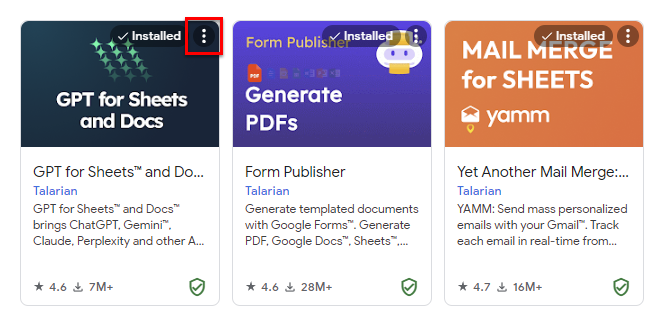
-
In the options menu, unselect and select Use in this document.
-
-
Try the same solutions as in Functions are stuck on 'Loading'.
-
- Formula parse error
Formula parse error.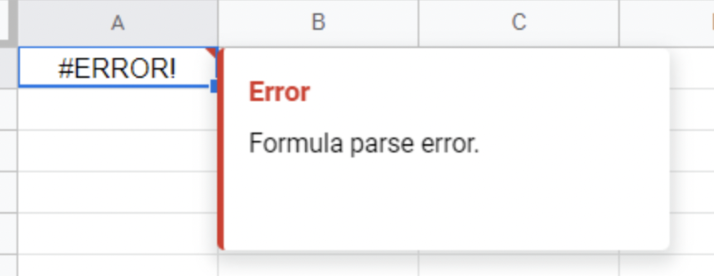
Problem: Your formula contains a structural or syntax error, making it uninterpretable by Google Sheets.
Solutions:
Check that you have quotation marks around your text if it's not in a cell:
✅
=GPT("hello")✅
=GPT(A1)❌
=GPT(hello)Check that your parameters are in the correct order. See the function list.
Check that all parameters (even optional ones) are added as empty when there is another parameter coming after them:
✅
GPT_TRANSLATE(A2, "french", , "Avoid passive voice")Check that you are using the right parameter separator for your locale:
,or;Check that you are using the correct number formats for temperature for your locale:
0.8or0,8
- Missing parameter
Error: Please set required parameter text in GPT_XXX() functionProblem: One of the parameters in your GPT formula is required and hasn't been set.
Solution:
Check which parameters are required for the GPT function you are using and adjust the formula as needed.
- Formulas are reloaded when I open, reload or edit the spreadsheet
Problem: Google Sheets automatically reloads all formulas every few hours. This includes GPT formulas and can lead to unexpected costs and result changes.
Important note: Sorting, filtering, moving columns or rows will reload ALL formulas and generate unexpected costs. Replace formulas with values before moving things around.
Solutions:
GPT for Sheets offers a variety of options to control recalculations:
-
To save results permanently and prevent formula reloading, replace GPT formulas with their results in selected cells or across an entire sheet.
-
To store results, enable the cache.
-
To prevent new executions in your spreadsheet, disable GPT formulas.
-
- Response is cut or incomplete
Problem: The response you get seems to be incomplete.
Solution:
You need to increase the cut-off limit.
- My results refreshed and I lost data
Problem: Google Sheets automatically reloads all formulas every few hours. This includes GPT formulas and can lead to unexpected result changes.
Solution:
-
You can recover your data by using the version history of your Google spreadsheet.
-
You can also take steps to prevent this situation from recurring.
GPT for Sheets offers a variety of options to control recalculations:
-
To save results permanently and prevent formula reloading, replace GPT formulas with their results in selected cells or across an entire sheet.
-
To store results, enable the cache.
-
To prevent new executions in your spreadsheet, disable GPT formulas.
-
-
- Request timed out
Error: Google Apps Script has timed out but your result could be in cache if you have cache enabled. Retry this cell to get your result. If your result is in cache it will be fetched without additional costs.Problem: Your request exceeded the 30-second limit allowed by Google Sheets functions. This timeout is triggered when the AI provider (such as OpenAI) takes too long to respond.
The response time can vary based on:
-
The model you are using
-
The time of usage
-
The current load on the AI provider's servers
Solutions:
-
Keep the cache enabled so that you can retry formulas that timed out without additional costs.
-
Choose a model with a faster response time.
-
Set the cut-off limit to a lower value.
-
Use GPT for Sheets bulk tools which are not subject to timeout.
-
Use GPT for Excel functions which are not subject to timeout.
-
- The model you are using is very slow at the moment
The model you are using is very slow at the moment which could result in timeouts. We canceled your executions to save you costs. Please try again with a faster model or at a later time.Problem: You have reached the limit of 10 timeout errors in the past minute with the same model. This is more likely to happen during peak times when the servers of the model providers (such as OpenAI) are experiencing high demand.
The response time can vary based on the specific model you are using and the time of usage.
Solutions:
-
Choose a model with a faster response time.
-
Set the cut-off limit to a lower value.
-
Keep the cache enabled so that you can retry formulas that timed out without additional costs.
-
Use GPT for Excel to completely avoid timeouts.
-
Bulk tool issues
- Bulk tool stuck on "Running..."
Problem: You click Run, but the bulk tool stays stuck on "Running..." and does not complete the task.
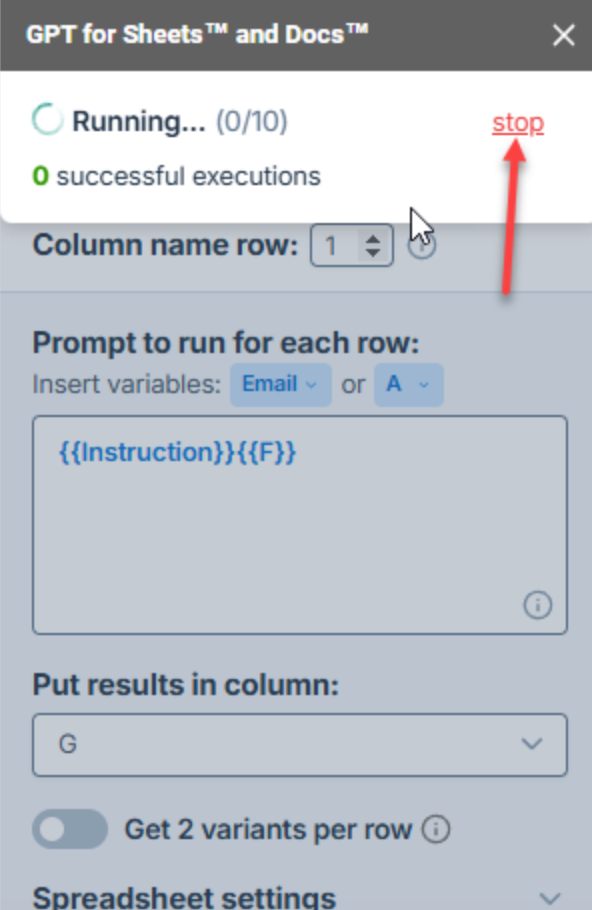
Solution:
Click Stop in the sidebar to cancel the current run and then restart it. If the issue persists, contact support.
- The Custom prompt tool is not working
Problem: The Custom prompt bulk tool does not give the desired result, often because the prompt is incomplete or the variables are incorrectly formatted.
Solution:
Review the Custom prompt article for guidance on creating effective prompts and using the tool. If the issue persists, contact support.
API key issues
- I've entered my API key but it's not working
Problem: You have entered an API key in the GPT for Work dashboard but you cannot use the key in the add-on.
Solution:
Even though you have entered an API key, you also need to purchase credits for GPT for Sheets. Learn more.
Rate limit issues
- Service invoked too many times
Problem: You are facing a rate limit error message from Google that indicates you've exceeded the daily limit for external service calls.
- Quota for gmail.com accounts: 20k / day
- Quota for Google Workspace accounts: 100k / day
Google's rate limits apply to all add-ons and scripts, not just ours. If you use multiple scripts or add-ons, your usage counts towards the same rate limits. It is not possible to increase them as explained here.
Solution:
- Quotas reset every 24 hours, so wait for the end of this period to regain access.
- Use bulk tools to bypass this error, as they are not subject to Google's rate limits.
- You can use GPT for Excel instead, as this add-in is not affected by Google's rate limits.
- Token limit is reached
Problem: You are facing a rate limit error message from your AI provider that indicates you've reached your tokens per minute limit.
Solutions:
-
Temporary: Choose a different model, or wait until your token limit resets.
-
Permanent: Use built-in models, which do not require an API key.
-
- Request limit is reached
Problem: You are facing a rate limit error message from your AI provider that indicates you've reached your requests per minute limit.
Solutions:
-
Temporary: Choose a different model, or wait until your request limit resets: one minute or 24 hours.
-
Permanent: Use built-in models, which do not require an API key.
-
Add-on not working
- Multiple Google accounts error
Problem: You are likely using multiple Google accounts in the same browsing session.
Solution:
-
Create a dedicated browser profile on Google Chrome, Microsoft Edge, or Apple Safari.
-
Open the GPT for Sheets and Docs add-on again.
-
- Sidebar is blank
Problem: GPT for Sheets sidebar is blank or fails to load.
Solution:
-
Open GPT for Sheets in a private browsing window.
-
If the sidebar loads successfully, check the following:
-
Ensure that you are not using multiple Google accounts in the same browser session. If you are, create a new browser profile on Google Chrome, Microsoft Edge, or Apple Safari.
-
Clear the cache and cookies on your browser.
-
Disable any add-on on your regular browser that may be preventing GPT for Sheets from launching. You can troubleshoot this by disabling one by one the extensions, reloading your Google spreadsheet and trying to launch the sidebar again.
If the problem persists, submit a support request.
-
-
- Menu only shows 'Help'
Problem: When you select Extensions > GPT for Sheets and Docs, the only option you see is Help. Accessing the Extensions menu immediately after opening your spreadsheet may cause this problem.
Solution:
Refresh your page, wait 30 seconds, then try to access the Extensions menu again.
- Menu only shows 'Help' (organization account)
Problem: GPT for Sheets is installed in your organization but only shows the Help menu on a shared file. This can happen when a file owned by a personal Google account is shared with an organization account.
Solution:
-
Ask the file owner to remove the document-level binding for GPT for Sheets:
-
Open the shared file in Google Sheets.
-
Go to Extensions > Add-ons > Manage add-ons.
-
Find GPT for Sheets and Docs, click the three vertical dots and uncheck Use in this document.
-
-
Reload the file.
-
Open the GPT for Sheets add-on again.
-
- Add-on not loading (organization account)
Problem: GPT for Sheets is installed in your organization but does not load on a shared file. This can happen when a file owned by a personal Google account is shared with an organization account.
Solution:
-
Ask the file owner to remove the document-level binding for GPT for Sheets:
-
Open the shared file in Google Sheets.
-
Go to Extensions > Add-ons > Manage add-ons.
-
Find GPT for Sheets and Docs, click the three vertical dots and uncheck Use in this document.
-
-
Reload the file.
-
Open the GPT for Sheets add-on again.
-
More questions
- How do I install the GPT for Sheets add-on?
Install from the Google Workspace Marketplace:
-
Go to the installation page.
-
Click Install.
-
Follow the steps until the end.
-
- Which browsers are compatible with GPT for Sheets?
GPT for Sheets is compatible with the following browsers:
-
Google Chrome (recommended for the best experience)
-
Microsoft Edge (only for Windows users)
-
Mozilla Firefox
-
Safari (only for Mac users)
-
- What permissions are required by the GPT for Sheets add-on?
- What is the pricing of GPT for Sheets?
GPT for Work has two pricing models. New spaces are on the subscription model, with a monthly fee per seat and an included usage allowance. Existing spaces remain on the pay-as-you-go model, where you buy credits and consume them as you go. To negotiate a custom plan, contact sales.
- Can GPT for Sheets analyze PDF files?
Yes, you can use the Fetch content from URL bulk tool to analyze PDF files.
- Can I scrape web pages in Sheets?
Yes, you can use the Fetch content from URL bulk tool to retrieve content from specific URLs.
- How can I add users?
You can add users from the dashboard.
If you're on the pay-as-you-go model, you can invite as many users as you need. Everyone draws on the same shared credit balance. If you're on the subscription model, team management is available on Business and Enterprise plans, and each user takes up a seat, so you need an available seat for every user you invite. For more information, see Add and remove users.
- How is my data processed? Is it used to train models?
-
We do not read or store any data from your document that you do not use as an input.
-
If you use a connected model, we do not log or store any of the inputs submitted or outputs received.
-
Whether you use a built-in or connected model, Talarian does not use your inputs and outputs to train language models.
For more information, see the Security and privacy FAQ.
-
- Do I need my own API key?
No. Many models are available as built-in models on both the subscription and pay-as-you-go pricing models. Setting an API key is optional and gives you access to more models, lower costs, and improved privacy.
- Can I use my own API key?
On the pay-as-you-go model, yes.
On the subscription model, yes if you're on the Business or Enterprise plan. API keys are not available on the Standard plan.
Using API keys offers several benefits:
-
More models. Access a wider range of models from a bigger pool of AI providers than what is available without an API key.
-
More control. Monitor and manage AI usage and costs directly on the AI provider's platform.
-
Improved privacy. We do not log inputs and outputs when you use a connected model. For more information, see our security and privacy FAQ.
-
Reduced costs. If you're on a pay-as-you-go space, using an API key reduces costs. You pay the model usage fees directly to the AI provider, while paying a reduced service fee for GPT for Work.
infoOn some custom Enterprise plans, using an API key or endpoint is required.
-
- Is GPT for Sheets connected to the web?
Yes, all bulk tools and functions in GPT for Sheets can access up-to-date information using models with web search capabilities (indicated by the 🌐 icon in the model switcher). You can also use the Fetch content from URL bulk tool to retrieve content from specific URLs.
- Where can I find the list of available GPT functions?
The list along with full documentation and video tutorials is available here. To try out some examples, make a copy of our GPT for Sheets examples template.
- Can GPT for Sheets process images?
Yes, GPT for Sheets supports multiple vision models that you can use with the following features:
-
Custom prompt bulk tool
-
Prompt images (Vision) bulk tool
-
GPT_VISION function
-
- Can I reference data located in another sheet in bulk tools?
Yes, in the prompt field of the Custom prompt bulk tool, you can reference cells located in another sheet within the same spreadsheet. Use the following syntax for the reference:
{{SheetName!Cell}}or{{SheetName!Range}}For example, to reference cells A1 to B5 in a sheet named Categories, use:
{{Categories!A1:B5}}- Can I transfer my credits between my Google and Microsoft accounts?
Credits are not directly transferable between platforms, but you can request a credit transfer between your Google and Microsoft accounts. Here's what you need to know:
-
Credits purchased for Microsoft Excel can be used on Microsoft Word and vice versa.
-
Credits purchased for Google Sheets can be used on Google Docs and vice versa.
If you need to transfer your credits between Google and Microsoft accounts, contact our support team.
-
- Is there a limit to the number of requests I can send?
AI providers enforce rate limits in order to ensure a smooth and fair access to everyone. Learn more.
- Why are some features locked?
Some features depend on your plan, not just your credit balance. On the subscription model, features such as team management, centralized billing, and Bring Your Own AI (BYOAI/K/E) are only available on the Business and Enterprise plans. If you have credits available and you're still prompted to upgrade, the feature you're trying to use is not included in your current plan. For more information about what each plan includes, see the plan comparison.
- Who can execute GPT functions in a shared Google spreadsheet?
After the Owner/Creator of a Google spreadsheet enables GPT functions, any user with Editor access to the spreadsheet can execute GPT functions. Learn more.
- How do I uninstall the GPT for Sheets add-on?
The uninstallation process is described here.
- Which models can I use?
Check our list of supported models.
- Which languages can I use?
Models work in many languages, but deliver the best results in English. All we can say is, try it. It is usually better to prompt in the language you want the response to be in. In any case, avoid mixing languages in a prompt.
- How do I get support?
We recommend checking our troubleshooting and FAQ pages.
If that doesn't help, submit a support request and we'll get back to you.
Our support hours are from Monday to Friday:
-
7:30 PM - 12:00 PM (New York)
-
1:30 AM - 6:00 PM (Paris)
-
5:00 AM - 9:30 PM (India)
-
8:30 AM - 1:00 AM (Tokyo)
-
- Can I use DeepSeek?
Yes, DeepSeek models are supported in GPT for Work as provider-connected models. With DeepSeek, you can access powerful AI models at lower costs.
For API key setup instructions, check out Select a model.
Billing issues
- I have a ChatGPT subscription, but I still need to buy credits
Problem: You have a ChatGPT subscription, but GPT for Docs still says that you need to buy credits.
Solution:
You do not need an OpenAI ChatGPT subscription (Go, Plus, Pro, Business, or Enterprise plan) to use GPT for Work. If you have a ChatGPT subscription, you cannot use it with GPT for Work.
- I bought a pack but I still have no credits
Problem: You have bought credits but GPT for Docs still shows zero credits.
Solution:
Sign in to the GPT for Work dashboard and check that you are using the Google account with which you have purchased your credits. Switch to another account if needed.
- My credits are not visible
Problem: You can't find a way to track your credits in GPT for Docs.
Solution:
You can track your credits by signing in to the dashboard with the same Google account you use with GPT for Docs.
- I have a subscription, but the add-on says I've reached my usage limit
Problem: You are on a subscription plan, but GPT for Docs says that you reached your usage limit.
Solution:
This happens when your seat's monthly usage credits are used up and one of the following is also true:
-
The space's shared extra-usage credits are empty or expired.
-
The space's monthly limit has been reached.
-
You have reached your user monthly limit.
If you are the space owner or an admin, buy extra-usage credits or raise the limit that was reached. Otherwise, ask your space owner or admin to do so.
You can also wait for your next renewal, when your seat's monthly usage credits reset. The Billing page in the GPT for Work dashboard shows the reset date.
-
- I have extra-usage credits that I can't use
Problem: You have extra-usage credits, but you can't use them.
Solution:
You need an active subscription to use extra-usage credits. If your subscription is canceled or a renewal payment failed, your extra-usage balance is preserved, but you cannot use it. To use it again, renew your subscription or start a new one from the Billing page in the GPT for Work dashboard. Extra-usage credits still expire 12 months after your last purchase, even while your subscription is inactive.
- My renewal payment failed
Problem: Your subscription renewal payment failed.
Solution:
If you are the space owner or an admin, update your payment method and pay the outstanding invoice from the GPT for Work dashboard:
-
In the sidebar, select Billing.
-
Click Payment method to open the Stripe Customer Portal, and update your payment method.
-
Back on the Billing page, click Pay now. If you skip this step, the payment is retried automatically over the next few days.
If you are not the space owner or an admin, ask them to update the payment method.
-
- I paid for a subscription, but the add-on still says my free trial ended
Problem: You upgraded to a paid subscription, but GPT for Docs still says that your free trial ended or asks you to upgrade.
Solution:
GPT for Docs may still show your previous subscription status. To update the status, click refresh in the message, or close and reopen the GPT for Docs sidebar.
If the message persists, you may be signed in to GPT for Docs with a different account than the one you used to buy the subscription. Check which account you are using in GPT for Docs, then switch to another account if needed.
Pricing and billing FAQ - Subscription
- How do I know what type of plan I'm on?
Open the GPT for Work dashboard. If the badge next to SPACE in the left sidebar shows Pay-as-you-go, your space is on the pay-as-you-go model. If it shows a plan name, your space is on the subscription model.
- Can I switch between the subscription and pay-as-you-go models?
No, not directly. Your pricing model is assigned automatically based on when your space was created: Subscription is rolling out to some new spaces, while existing spaces remain on pay-as-you-go. To ask about moving your space to a different pricing model, contact support.
- How can I buy more credits?
You can buy credits at any time from the GPT for Work dashboard. Packs feed the shared extra-usage credits and can only be bought while your subscription is active.
- How are credits consumed?
Each seat's monthly usage credits are consumed first, then the shared extra-usage credits. For more information about credit consumption, see How credits are consumed.
- Do credits expire?
Credit packs expire one year after your last purchase. Buy more credits at any time to reset the expiry to one year.
Example: You have $100 worth of credits. Your last purchase was 7 months ago, so these credits will expire in 5 months. You buy $29 worth of credits. You now have $129 worth of credits, which will expire in 12 months.
The monthly usage credits are separate: they reset at every renewal and do not roll over.
- Do I need credits if I set an API key or endpoint?
Yes, you need credits even if you use an API key or endpoint. Models available through an API key have their own pricing. Models available through a dedicated endpoint do not consume credits, but require credits to be available.
- Can I share credits with my team?
Each seat has its own monthly usage credits, and the extra-usage credits are pooled across the whole space.
- Can I share credits between Google and Microsoft accounts?
-
Credits bought for Google Sheets can be used on Google Docs, and vice versa.
-
Credits bought for Microsoft Excel can be used on Microsoft Word, and vice versa.
To transfer credits between Google and Microsoft accounts, contact support.
-
- Can I transfer my credits to another account?
To transfer your credits to another account, contact support.
- Can I set an auto top-up?
No, but you can buy larger packs to have your credits last longer.
- Can I pause usage?
No, but you can set spending limits for extra usage to keep credit consumption under control. Learn more.
- Can I set credit usage limits?
Yes. You can set a monthly spending limit for your space and individual monthly limits per user from the Limits page in the GPT for Work dashboard. Spending limits apply only to the shared extra-usage credits. Learn more.
- How do I raise the monthly limit for my space or a user?
If you or your team hit a monthly limit, a space owner or admin can raise or remove it from the Limits screen in the GPT for Work dashboard. Monthly limits apply only to the shared extra-usage credits and are available on Business and Enterprise plans. Each seat's monthly usage credits cannot be raised. Learn more.
- Why is my balance negative?
Before each run, the add-on estimates the cost and blocks the run if your balance is too low. If the final cost exceeds the estimate, your balance can go negative by a small amount. This amount is deducted from the following billing cycle.
- Can I get a refund?
We do not offer refunds. We encourage you to carefully consider how many credits you need before buying extra-usage credits.
Pricing and billing FAQ - Pay-as-you-go
- How do I know what type of plan I'm on?
Open the GPT for Work dashboard. If the badge next to SPACE in the left sidebar shows Pay-as-you-go, your space is on the pay-as-you-go model. If it shows a plan name, your space is on the subscription model.
- Can I switch between the subscription and pay-as-you-go models?
No, not directly. Your pricing model is assigned automatically based on when your space was created: Subscription is rolling out to some new spaces, while existing spaces remain on pay-as-you-go. To ask about moving your space to a different pricing model, contact support.
- How can I buy more credits?
You can buy credits at any time from the GPT for Work dashboard.
- How many credits do I need?
To estimate your credit usage, try our estimation tools.
- How are credits consumed?
- What's a token?
A token is a unit of text, such as a word, subword, punctuation mark, or symbol. Models split all input and output text into tokens for processing. Model providers use tokens as the basic unit for measuring model usage. Input tokens from your prompt and output tokens from the model's response contribute to your credit consumption. For more information, see Tokens and How credits are consumed.
- Do credits expire?
Credit packs expire one year after your last purchase. Buy more credits at any time to reset the expiry to one year.
Example: You have $100 worth of credits. Your last purchase was 7 months ago, so these credits will expire in 5 months. You buy $29 worth of credits. You now have $129 worth of credits, which will expire in 12 months.
- Do I need credits if I set an API key or endpoint?
Yes, you need credits even if you use an API key or endpoint. Models available through an API key have their own pricing. Models available through a dedicated endpoint do not consume credits, but require credits to be available.
- Can I share credits with my team?
Yes. Team members share the same credits.
- Can I share credits between Google and Microsoft accounts?
-
Credits bought for Google Sheets can be used on Google Docs, and vice versa.
-
Credits bought for Microsoft Excel can be used on Microsoft Word, and vice versa.
To transfer credits between Google and Microsoft accounts, contact support.
-
- Can I transfer my credits to another account?
To transfer your credits to another account, contact support.
- Can I set an auto top-up?
No, but you can buy larger packs to have your credits last longer.
- Can I pause usage?
No, but you can set spending limits to keep credit consumption under control. Learn more.
- Can I set credit usage limits?
Yes. You can set a monthly spending limit for your space and individual monthly limits per user from the Limits page in the GPT for Work dashboard. Learn more.
- How do I raise the monthly limit for my space or a user?
If you or your team hit a monthly limit, a space owner or admin can raise or remove it from the Limits screen in the GPT for Work dashboard. Learn more.
- Why is my balance negative?
Before each run, the add-on estimates the cost and blocks the run if your balance is too low. If the final cost exceeds the estimate, your balance can go negative by a small amount. This amount is deducted from your next credit pack purchase.
- Can I get a refund?
We do not offer refunds. We encourage you to carefully consider how many credits you need before buying credits.
- Do errors consume credits?
Yes. Input tokens are always billed. If a request times out, output tokens are billed as well. To avoid timeouts, use the Agent or the bulk tools.
Output issues
- Response is cut or incomplete
This response was truncated. Choose a model with a larger context window.Problem: The response you get from GPT for Docs is truncated.
Solution:
Models have a maximum token limit, which is the maximum total number of tokens that can be used in both the input and the response. This means models may not provide complete responses to long queries or when a large portion of text is selected as input.
To stay within the token limit, you can:
-
Highlight a smaller portion of text in your document.
-
Reduce the value of Max response tokens.
-
Select a model with a higher limit.
-
API key issues
- I've entered my API key but it's not working
Problem: You have entered an API key in the GPT for Work dashboard but you cannot use the key in the add-on.
Solution:
Even though you have entered an API key, you also need to purchase credits for GPT for Docs. Learn more.
Rate limit issues
- Token limit is reached
Problem: You are facing a rate limit error message from your AI provider that indicates you've reached your tokens per minute limit.
Solutions:
-
Temporary: Choose a different model, or wait until your token limit resets.
-
Permanent: Use built-in models, which do not require an API key.
-
- Request limit is reached
Problem: You are facing a rate limit error message from your AI provider that indicates you've reached your requests per minute limit.
Solutions:
-
Temporary: Choose a different model, or wait until your request limit resets: one minute or 24 hours.
-
Permanent: Use built-in models, which do not require an API key.
-
Installation issues
- The add-on doesn't load / I can't sign in
Problem: If your organization uses a firewall or proxy, it may prevent the add-on from loading or from authenticating your user account.
Solution:
Ask your IT administrator to whitelist the following domains:
*.gptforwork.com*.google.com*.googleapis.com*.googleusercontent.com- I want to uninstall
Problem: You are not using the add-on in Docs or Sheets, and you want to uninstall it.
Solution:
To remove the add-on from Docs and Sheets, follow our uninstallation guide.
Add-on not working
- Multiple Google accounts error
Problem: You are likely using multiple Google accounts in the same browsing session.
Solution:
-
Create a dedicated browser profile on Google Chrome, Microsoft Edge, or Apple Safari.
- Create a new document.
-
Open the GPT for Sheets and Docs add-on again.
-
- Sidebar is blank
Problem: GPT for Docs sidebar is blank or fails to load.
Solution:
-
Open GPT for Docs in a private browsing window.
-
If the sidebar loads successfully, check the following:
-
Ensure that you are not using multiple Google accounts in the same browser session. If you are, create a new browser profile on Google Chrome, Microsoft Edge, or Apple Safari.
-
Clear the cache and cookies on your browser.
-
Disable any add-on on your regular browser that may be preventing GPT for Docs from launching. You can troubleshoot this by disabling one by one the extensions, reloading your Google document and trying to launch the sidebar again.
If the problem persists, submit a support request.
-
-
- Menu only shows 'Help'
Problem: When you select Extensions > GPT for Sheets and Docs, the only option you see is Help. Accessing the Extensions menu immediately after opening your document may cause this problem.
Solution:
Refresh your page, wait 30 seconds, then try to access the Extensions menu again.
- Menu only shows 'Help' on a shared file (organization account)
Problem: GPT for Docs is installed in your organization but only shows the Help menu on a shared file. This can happen when a file owned by a personal Google account is shared with an organization account.
Solution:
-
Ask the file owner to remove the document-level binding for GPT for Docs:
-
Open the shared file in Google Docs.
-
Go to Extensions > Add-ons > Manage add-ons.
-
Find GPT for Sheets and Docs, click the three vertical dots and uncheck Use in this document.
-
-
Reload the file.
-
Open the GPT for Docs add-on again.
-
- Add-on not loading (organization account)
Problem: GPT for Docs is installed in your organization but does not load on a shared file. This can happen when a file owned by a personal Google account is shared with an organization account.
Solution:
-
Ask the file owner to remove the document-level binding for GPT for Docs:
-
Open the shared file in Google Docs.
-
Go to Extensions > Add-ons > Manage add-ons.
-
Find GPT for Sheets and Docs, click the three vertical dots and uncheck Use in this document.
-
-
Reload the file.
-
Open the GPT for Docs add-on again.
-
More questions
- How do I install the GPT for Docs add-on?
Install from the Google Workspace Marketplace:
-
Go to the installation page.
-
Click Install.
-
Follow the steps until the end.
-
- Which browsers are compatible with GPT for Docs?
GPT for Docs is compatible with the following browsers:
-
Google Chrome (recommended for the best experience)
-
Microsoft Edge (only for Windows users)
-
Mozilla Firefox
-
Safari (only for Mac users)
-
- What permissions are required by the GPT for Docs add-on?
- I have installed GPT for Docs, how do I get started?
Now that GPT for Docs is installed, you can launch it from the Google Docs Extensions menu and start editing or generating content with the add-on.
- What is the pricing of GPT for Docs?
GPT for Work has two pricing models. New spaces are on the subscription model, with a monthly fee per seat and an included usage allowance. Existing spaces remain on the pay-as-you-go model, where you buy credits and consume them as you go. To negotiate a custom plan, contact sales.
- How is my data processed? Is it used to train models?
-
We do not read or store any data from your document that you do not use as an input.
-
If you use a connected model, we do not log or store any of the inputs submitted or outputs received.
-
Whether you use a built-in or connected model, Talarian does not use your inputs and outputs to train language models.
For more information, see the Security and privacy FAQ.
-
- Do I need my own API key?
No. Many models are available as built-in models on both the subscription and pay-as-you-go pricing models. Setting an API key is optional and gives you access to more models, lower costs, and improved privacy.
- Can I use my own API key?
On the pay-as-you-go model, yes.
On the subscription model, yes if you're on the Business or Enterprise plan. API keys are not available on the Standard plan.
Using API keys offers several benefits:
-
More models. Access a wider range of models from a bigger pool of AI providers than what is available without an API key.
-
More control. Monitor and manage AI usage and costs directly on the AI provider's platform.
-
Improved privacy. We do not log inputs and outputs when you use a connected model. For more information, see our security and privacy FAQ.
-
Reduced costs. If you're on a pay-as-you-go space, using an API key reduces costs. You pay the model usage fees directly to the AI provider, while paying a reduced service fee for GPT for Work.
infoOn some custom Enterprise plans, using an API key or endpoint is required.
-
- Why is my response cut or incomplete?
Models have a maximum token limit, which is the maximum total number of tokens that can be used in both the input and the response. This means models may not provide complete responses to long queries or when a large portion of text is selected as input.
To stay within the token limit, you can:
-
Highlight a smaller portion of text in your document.
-
Reduce the value of Max response tokens.
-
Select a model with a higher limit.
-
- Is there a limit to the number of requests I can send?
AI providers enforce rate limits in order to ensure a smooth and fair access to everyone. Learn more.
- Why are some features locked?
Some features depend on your plan, not just your credit balance. On the subscription model, features such as team management, centralized billing, and Bring Your Own AI (BYOAI/K/E) are only available on the Business and Enterprise plans. If you have credits available and you're still prompted to upgrade, the feature you're trying to use is not included in your current plan. For more information about what each plan includes, see the plan comparison.
- How do I uninstall the GPT for Docs add-on?
The uninstallation process is described here.
- Which models can I use?
Check our list of supported models.
- Which languages can I use?
Models work in many languages, but deliver the best results in English. All we can say is, try it. It is usually better to prompt in the language you want the response to be in. In any case, avoid mixing languages in a prompt.
- How do I get support?
We recommend checking our troubleshooting and FAQ pages.
If that doesn't help, submit a support request and we'll get back to you.
Our support hours are from Monday to Friday:
-
7:30 PM - 12:00 PM (New York)
-
1:30 AM - 6:00 PM (Paris)
-
5:00 AM - 9:30 PM (India)
-
8:30 AM - 1:00 AM (Tokyo)
-